How to Install IOS 16 and IPadOS 16 Betas
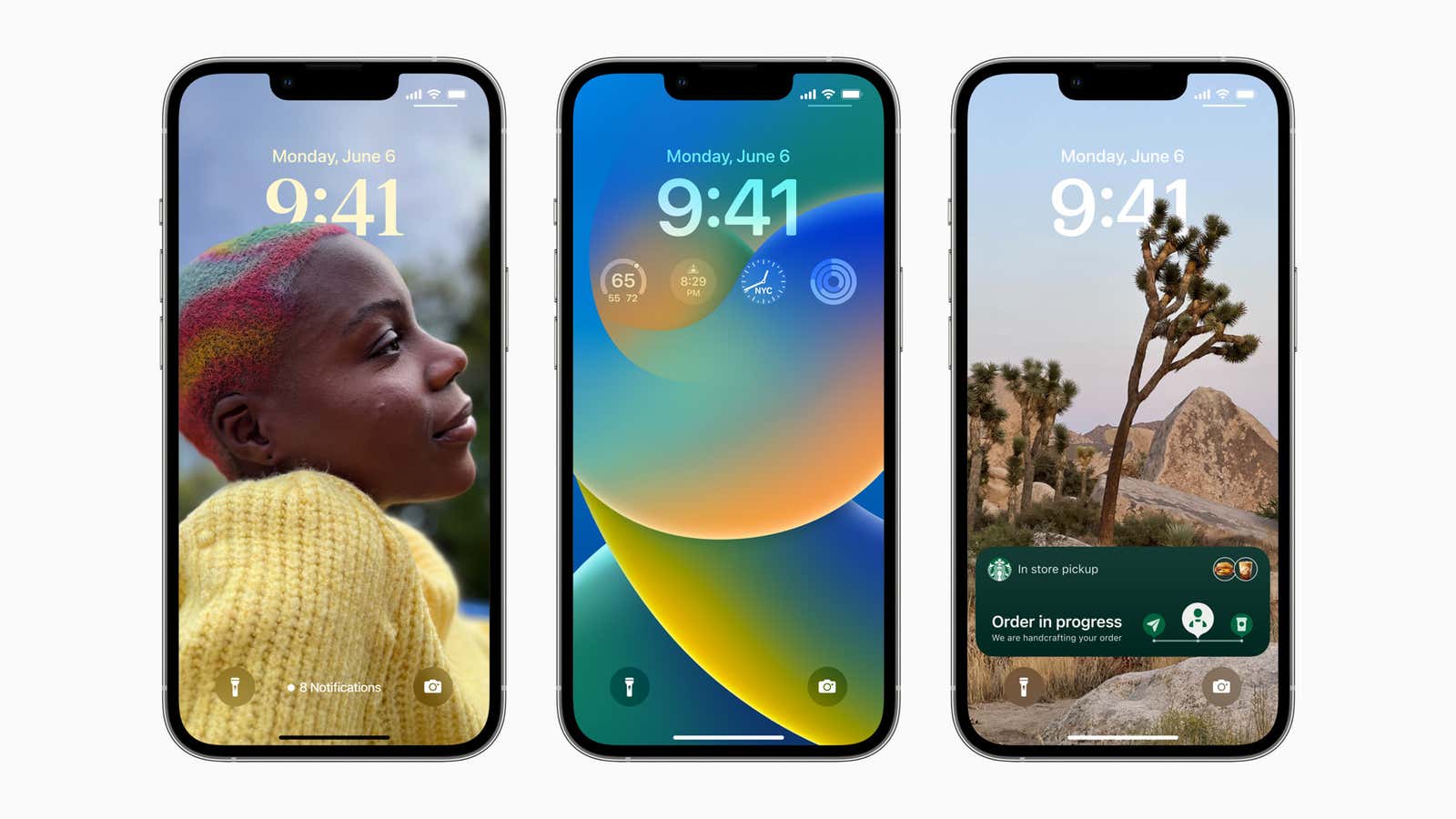
Apple just announced iOS and iPadOS 16 during its WWDC event today, Monday, June 6th. The new update has some big changes, such as a customizable lock screen, updated notifications, and the ability to edit and undo messages, as well as adding a macOS window. controls on the iPad (finally). While the software won’t be available to the general public until fall, you don’t have to wait that long to try it out. In fact, you can try it today.
Which devices are compatible with iOS 16 and iPadOS 16?
Apple’s latest update is the first in a while to end support for older iPhones. iPhone 7, 7 Plus, 6S, 6S Plus, and SE (first generation) are not compatible with iOS 16 and will remain on iOS 15 until the end of their lifecycle. However, the list of iPhones and iPads compatible with “16” is quite long, so it’s likely that your device is ready to upgrade.
Here is a list of iPhones compatible with iOS 16:
- iphone 13
- iphone 13 mini
- iphone 13 pro
- iPhone 13 Pro Max
- iPhone SE (third generation)
- iphone 12
- iphone 12 mini
- iphone 12 pro
- iPhone 12 Pro Max
- iphone 11
- iPhone 11 Pro
- iPhone 11 Pro Max
- iPhone SE (second generation)
- iphone xs
- iphone xs max
- iPhone xp
- iphone x
- iphone 8
- iphone 8 plus
The following iPads are compatible with iPadOS 16:
- Pad Pro (all models)
- iPad Air (3rd generation and later)
- iPad (5th generation and later)
- iPad mini (5th generation and later)
Don’t install a beta without knowing the risks
Beta builds are a great way to test new software before it’s officially released. Of course, the purpose of a beta is not only to let you try out new features before your friends, but also to catch problems with this software before the general public installs it on their devices.
So, if you choose to download the beta on your personal device, you should be aware that you are not installing the same fully tested software that you would normally expect from Apple. This beta version may contain bugs that interfere with the daily use of your device or even damage it. If things get so bad that you need to uninstall the beta, know that the only way to do this is to factory reset the device, which will delete any data that hasn’t been backed up to an independent source.
How to Install iOS 16 and iPadOS 16 Developer Betas
Unfortunately, in order to download the iOS 16 developer beta on your iPhone, you need to be an Apple developer. Now, technically, anyone can be an Apple developer, even if you don’t know how to develop software. However, to get this title, you need to pay $99 per year . If you should try the iOS 16 and iPadOS 16 betas, sign up at the following Apple registration site .
There are several ways to install the developer beta on iPhone. This is the simplest one:
- Make sure your iPhone is connected to a power source and Wi-Fi.
- Download the iOS 16 Configuration Profile from the Developer Downloads page on your iPhone.
- Go to Settings > General > Software Update and select Download and Install.
- Click Install, then enter your password if prompted.
When can you install the iOS 16 and iPadOS 16 public betas?
Apple announced during the keynote that the iOS 16 public beta should launch sometime in July. This delay between the developer and public betas ensures that any significant bugs hidden in temperamental software are caught before the beta releases to a wider range of testers. A beta that wreaks havoc on iOS developers’ iPhones is bad; the beta version that does the same to the general public is much worse.
We’ll update this post when the public beta is available. When the beta is available, you can install it by registering your iPhone or iPad in the beta testing program at beta.apple.com . At the moment, only iOS 15.6 and iPadOS 15.6 are available in the beta channel, so you’ll have to wait until next month for iOS 16 and iPadOS 16.