Conduct a Privacy Audit of This Android App, I Beg You
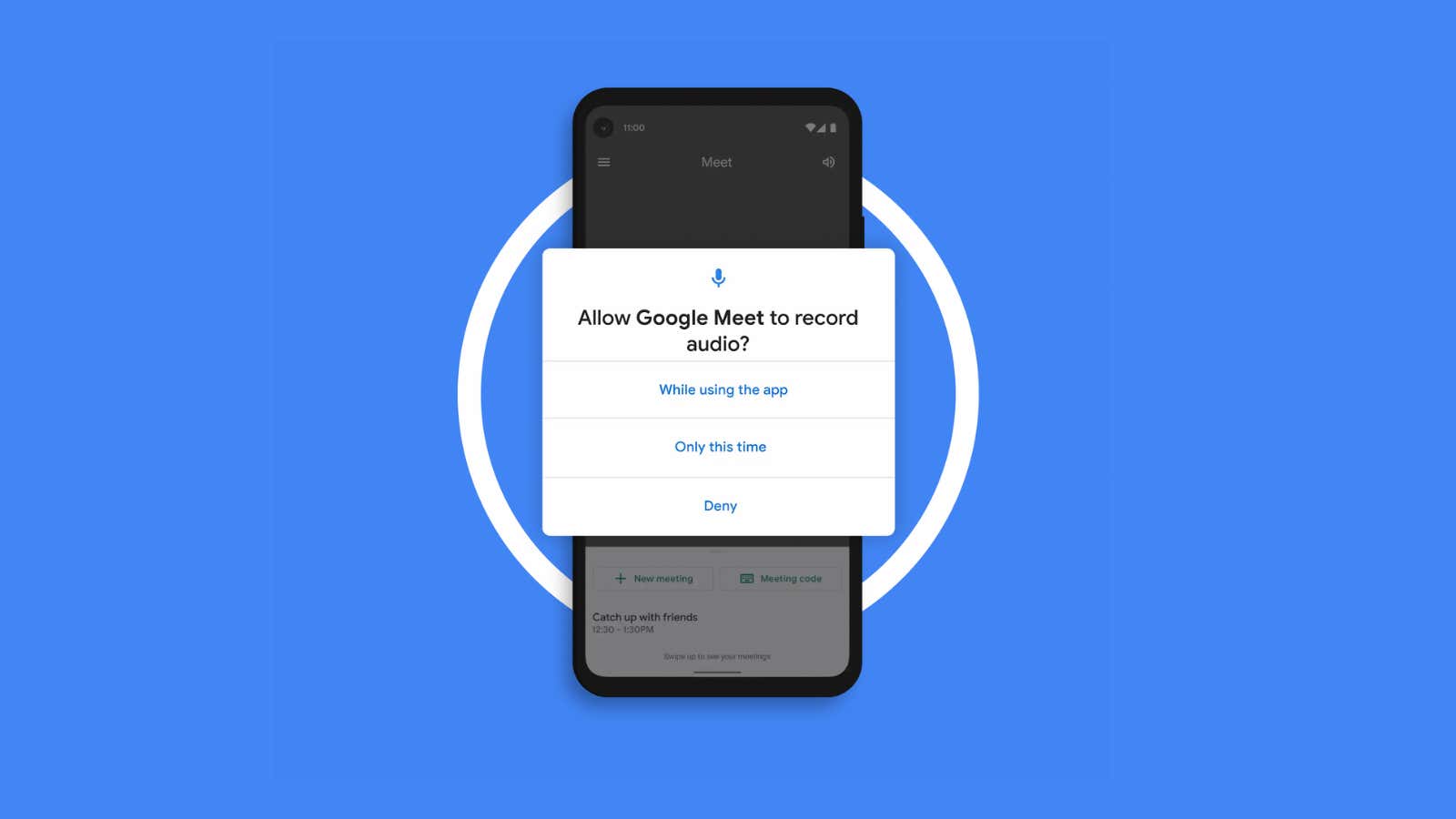
Android’s reputation as a platform that doesn’t care about user privacy is outdated: if you’re using a modern Android smartphone, you have a lot of control over which app can access your data and in what context. With new privacy features, you can, for example, grant an app access to your location for a limited time. If you haven’t thought much about app permissions in a while, or tend to give apps whatever permissions they want, you should audit privacy permissions.
Thanks to Google’s push for better privacy controls, most modern Android smartphones come with a dedicated permission manager (since Android 12 called the privacy panel) that gives you a single place where you can choose which apps can access things like yours. call logs. , camera, microphone, location, contacts, files, physical activity and more.
Open the Settings app on your Android smartphone and select ” Privacy ” > ” Permission Manager ” (or ” Privacy Panel “). Different manufacturers may use different phrases for this. If you don’t find the options, look for “permissions” in the Settings app.
You will see a list of all available permissions. Go through the list and see if anything out of the ordinary. For example, Facebook is asking for permanent location access, or an obscure app looking at your call logs. Select an app and then switch to ” Don’t allow “. Be aware that some features require these permissions: If you return to the app and notice that something you like isn’t working, consider allowing the permission again.
If you don’t want to block the app, you can also fine-tune the permissions. For example, users of Android 10 and later can only share their location with the app while the app is running. And if you’re using Android 11 and later, you can give the app temporary access to things like your location, microphone, or camera. Android 12 goes one step further by only giving out a rough location so that no app can determine your exact location (of course, you shouldn’t use this setting for something like Google Maps or a sharing app).
Now that you understand how permissions work in newer versions of Android, go through the list of apps and revoke access as you see fit (and if you’re on Android 11, use the new temporary permissions features).